Getting Started — Doc Site Publish
Getting Started with iSparkClaw Doc Site Publish
Section titled “Getting Started with iSparkClaw Doc Site Publish”Welcome to Doc Site Publish — iSparkClaw’s tool for transforming your Markdown documentation into a professional website.
First Launch
Section titled “First Launch”1. Login
Section titled “1. Login”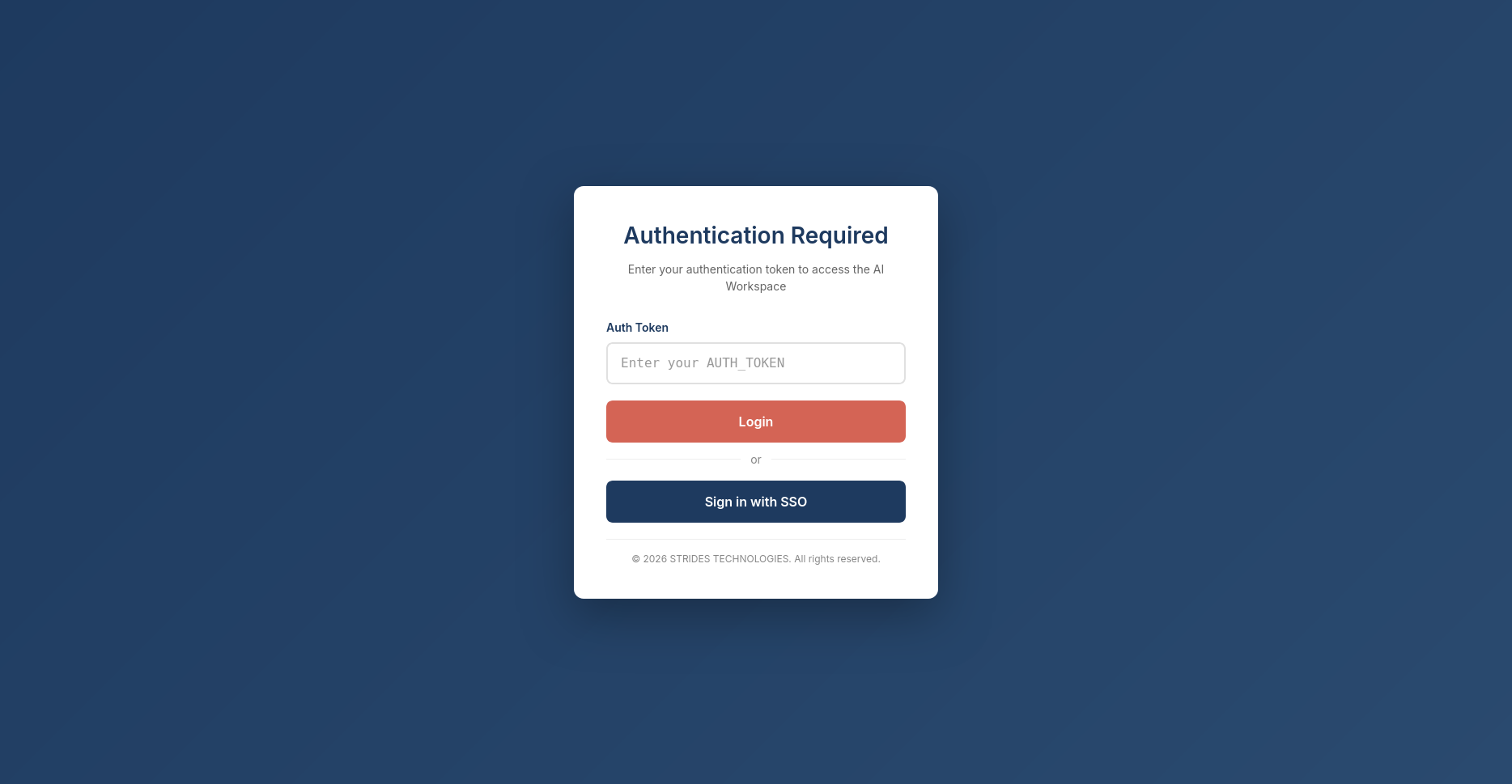
On first launch, you’ll see a login screen. Enter your authentication token provided by your administrator.
The token is stored securely for future sessions.
2. Create Your First Workspace
Section titled “2. Create Your First Workspace”After logging in, click Create Workspace in the header. You’ll see a dialog with these options:
Workspace Name: A display name for your project (e.g., “Product Docs”, “API Reference”)
Options:
- Create README.md — Generates a starter documentation file
- Select Template — Choose from pre-built workspace templates
When you click Create, iSparkClaw will set up your new workspace automatically.
3. Open an Existing Project
Section titled “3. Open an Existing Project”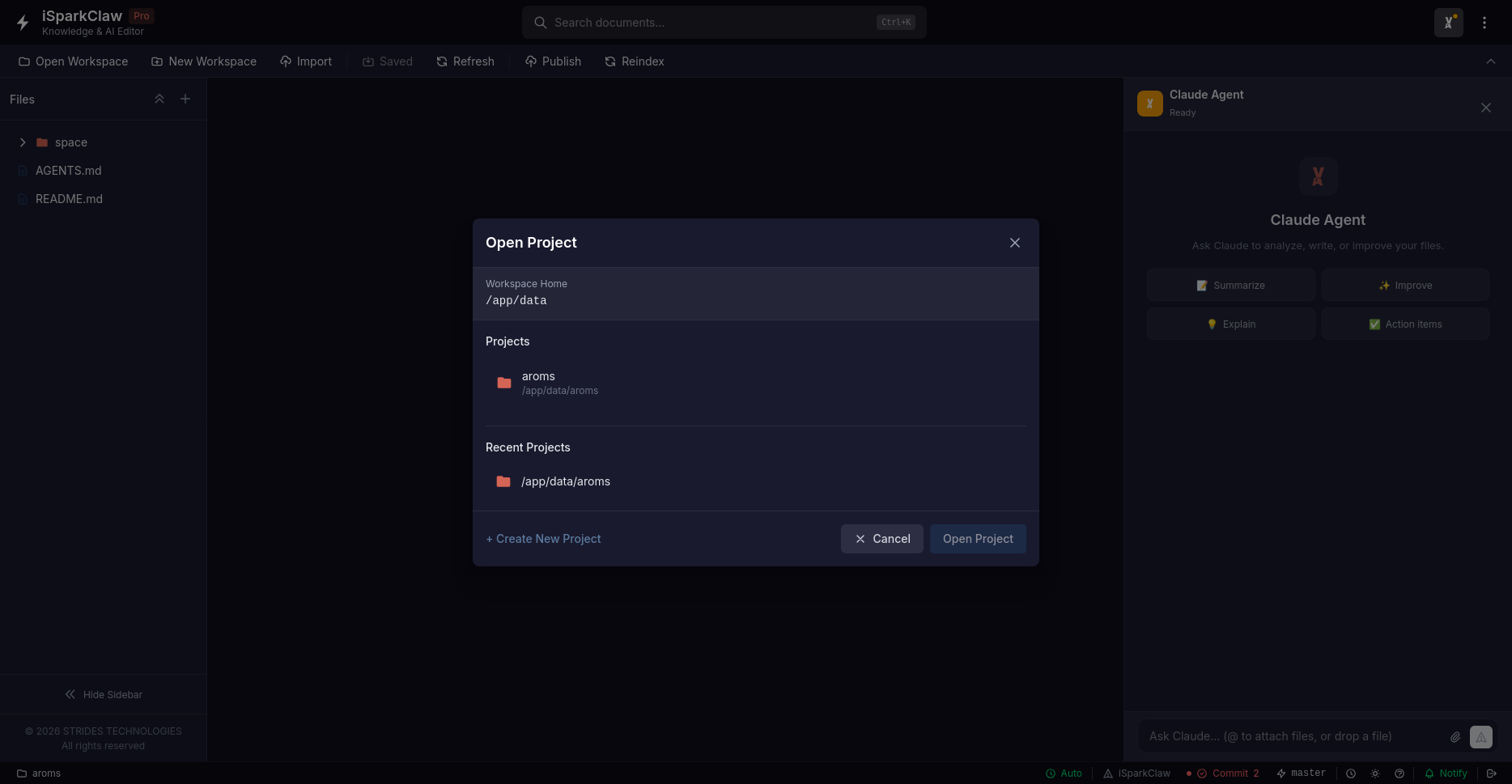
If you already have projects:
- Click Open Project in the header
- Select a project from the list
- The project loads with all its files
4. Publishing Overview
Section titled “4. Publishing Overview”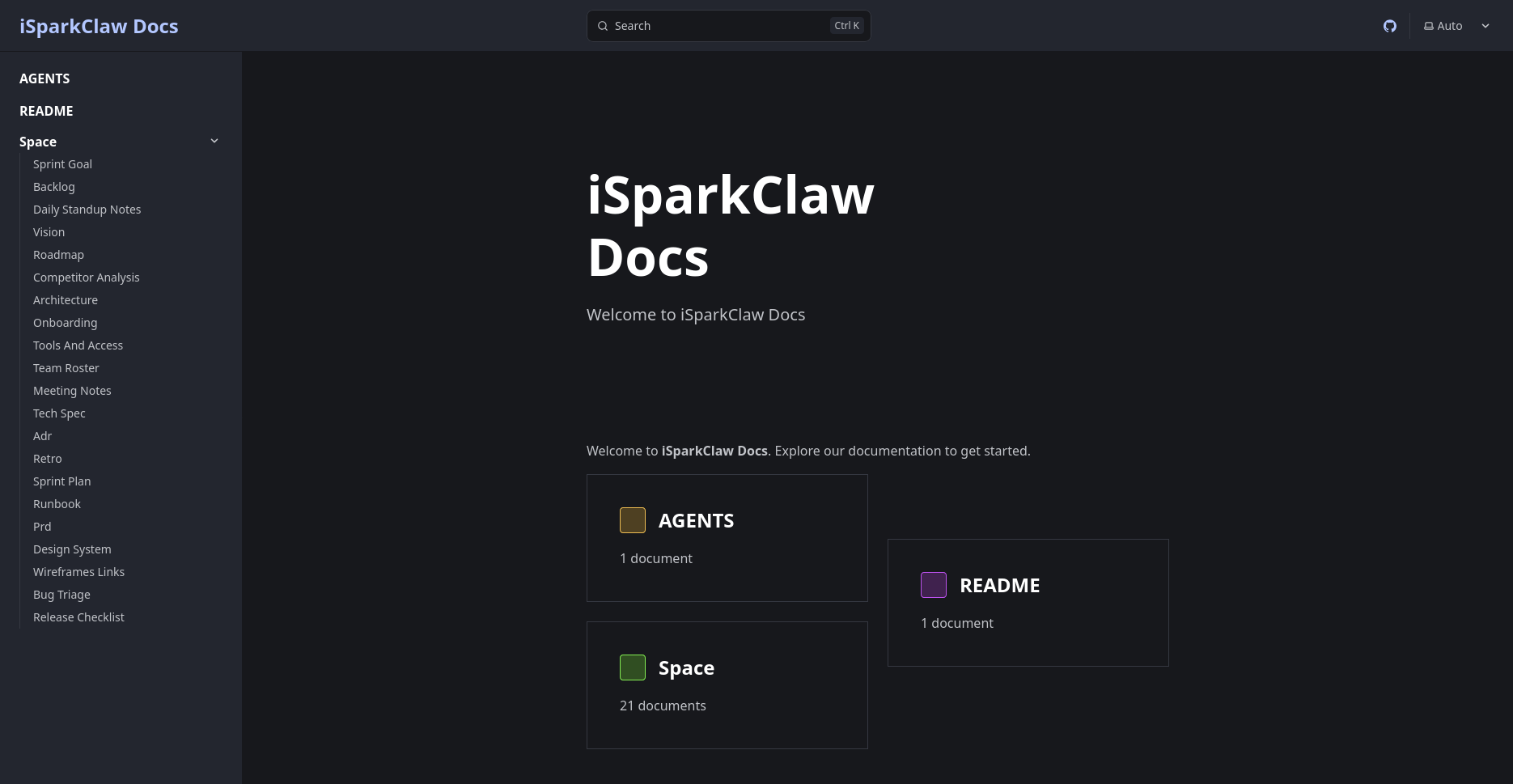
Doc Site Publish transforms your Markdown files into a documentation website in four steps:
- Setup — Configure your site name, theme, and template
- Sync — Import your documents and organize navigation
- Build — Generate the static website
- Preview — View your site in the browser
Click the Publish button in the header to start.
Deployment Options
Section titled “Deployment Options”- Docker — Quick deployment for small to medium teams
- Kubernetes — High availability and scaling for large organizations
- Cloud Providers — AWS, Google Cloud, Azure, DigitalOcean
- On-Premise — Your own servers or data center
Need Help?
Section titled “Need Help?”-
Press
F1or?in the app to see the built-in help dialog -
Check the status bar at the bottom for helpful tips
-
Deployment — Deploy iSparkClaw for your team