Document Conversion
Document Conversion
Section titled “Document Conversion”iSparkClaw AI Editor can convert PDF and DOCX files to Markdown format, making it easy to import existing documents.
Importing Documents
Section titled “Importing Documents”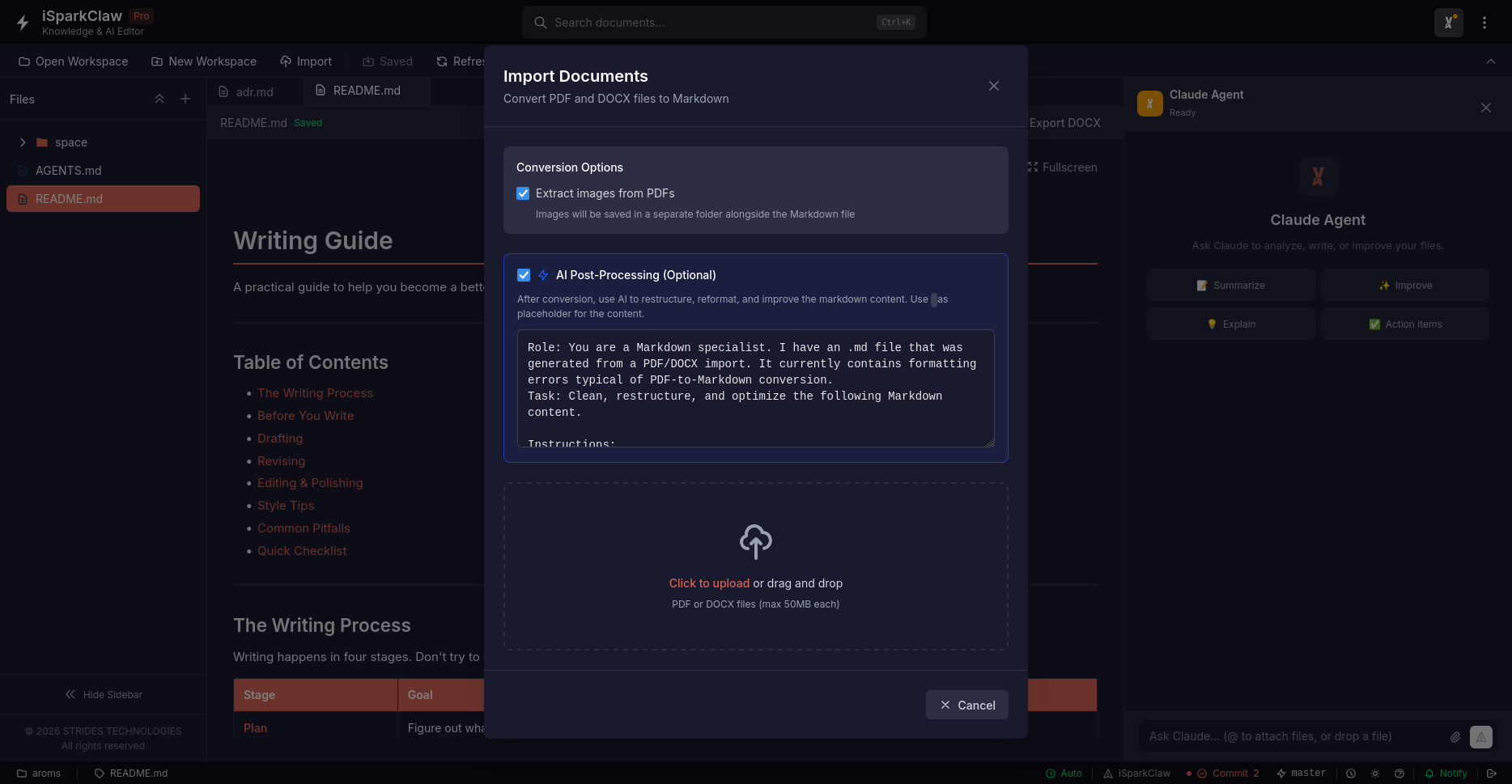
Opening the Import Dialog
Section titled “Opening the Import Dialog”Click Import in the toolbar, or drag files directly onto the import area.
Supported Formats
Section titled “Supported Formats”| Format | Description |
|---|---|
| Convert PDF documents to Markdown | |
| DOCX | Convert Word documents to Markdown |
Batch Import
Section titled “Batch Import”You can import multiple files at once. Each file is converted and results are shown after completion.
Conversion Options
Section titled “Conversion Options”Image Extraction
Section titled “Image Extraction”When importing PDFs:
- Extract images — Images from the PDF are saved to your workspace
- Text only — Only text content is converted
Toggle this option in the import dialog before converting.
AI Post-Processing
Section titled “AI Post-Processing”After conversion, you can use AI to clean up the results:
- Select the converted file
- Click Process with AI
- The AI will:
- Remove unwanted artifacts
- Fix formatting issues
- Improve readability
Export to DOCX
Section titled “Export to DOCX”You can also export Markdown to Word format:
- Open a Markdown file in the editor
- Click Export DOCX in the toolbar
- The file downloads to your computer
Tips for Best Results
Section titled “Tips for Best Results”- Clean source files — Well-formatted PDFs and Word docs convert better
- Review output — Always check converted content for accuracy
- Use AI cleanup — AI post-processing significantly improves quality
- Batch import — Import multiple files at once for efficiency
Troubleshooting
Section titled “Troubleshooting”Conversion produces unexpected results
Section titled “Conversion produces unexpected results”- Check if the PDF is text-based or scanned images
- Try enabling image extraction
- Use AI cleanup to improve the output
Images not extracted
Section titled “Images not extracted”- Make sure “Extract images” is enabled in the dialog
- Try re-importing the file