Workspace Panel
Workspace Panel
Section titled “Workspace Panel”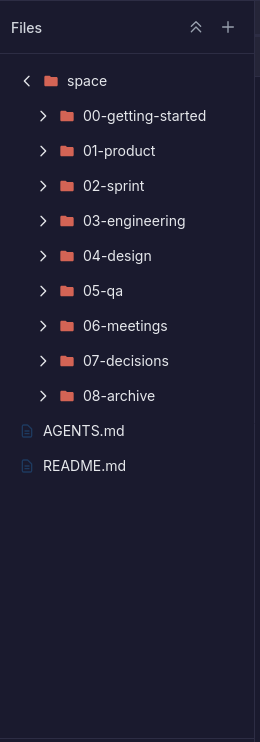
The Workspace Panel is a file browser and editor for directories configured in the Spaces panel. Open it by clicking the Files button in the top bar.
Opening and Closing
Section titled “Opening and Closing”- Open: Click the Files button in the top bar.
- Close: Click the Files button again, or the close (x) icon in the panel header.
File Browser
Section titled “File Browser”Directory Tree
Section titled “Directory Tree”Files and folders are displayed in an expandable tree:
- Click a folder to expand or collapse it.
- Directories show a chevron indicator.
- Expanded/collapsed state is persisted in localStorage.
Breadcrumbs
Section titled “Breadcrumbs”A breadcrumb trail at the top shows your current path. Click any breadcrumb to navigate to that directory.
Git Status
Section titled “Git Status”If the workspace directory is a git repository, a status badge appears showing:
- Branch name: The current git branch.
- Dirty state: A dot indicates uncommitted changes.
- Ahead/Behind: Numbers show commits ahead of or behind the remote.
File Preview
Section titled “File Preview”Click a file to preview its contents. The preview mode depends on file type:
Code / Text Files
Section titled “Code / Text Files”Displayed as raw text with syntax-appropriate formatting.
Images
Section titled “Images”Rendered directly in the panel.
Markdown
Section titled “Markdown”Rendered as HTML with full markdown formatting (headings, lists, code blocks, etc.).
Skill Preview
Section titled “Skill Preview”When you open a skill from the Skills panel, its SKILL.md content is rendered here in markdown format.
File Editing
Section titled “File Editing”Enter Edit Mode
Section titled “Enter Edit Mode”- Click the Edit button in the file preview header.
- Or double-click a file to open it directly in edit mode.
Editing
Section titled “Editing”- The file content appears in an editable text area.
- Make your changes directly in the text.
Saving
Section titled “Saving”- Press Ctrl+S (or Cmd+S on Mac) to save.
- Or click the Save button in the header.
Canceling
Section titled “Canceling”- Press Escape to cancel edits and return to preview mode.
- Or click the Cancel button.
Creating Files and Folders
Section titled “Creating Files and Folders”- New File: Click the New File button, enter a filename, and press Enter.
- New Folder: Click the New Folder button, enter a folder name, and press Enter.
Renaming
Section titled “Renaming”Double-click a file or folder name in the tree to rename it. Enter the new name and press Enter.
Deleting
Section titled “Deleting”Click the delete (trash) icon next to a file or folder to remove it.
Downloading
Section titled “Downloading”Click the download icon to save a file to your local machine. Both text and binary files are supported.
Resizing
Section titled “Resizing”Drag the left edge of the Workspace Panel to resize it. The panel width is persisted in localStorage and restored on next open.
- Document Conversion — Import PDF and DOCX files
- Getting Started — Learn more about the AI Editor