Document Editing
Document Editing
Section titled “Document Editing”iSparkClaw AI Editor provides a powerful editor for creating and editing Markdown documentation.
The Editor
Section titled “The Editor”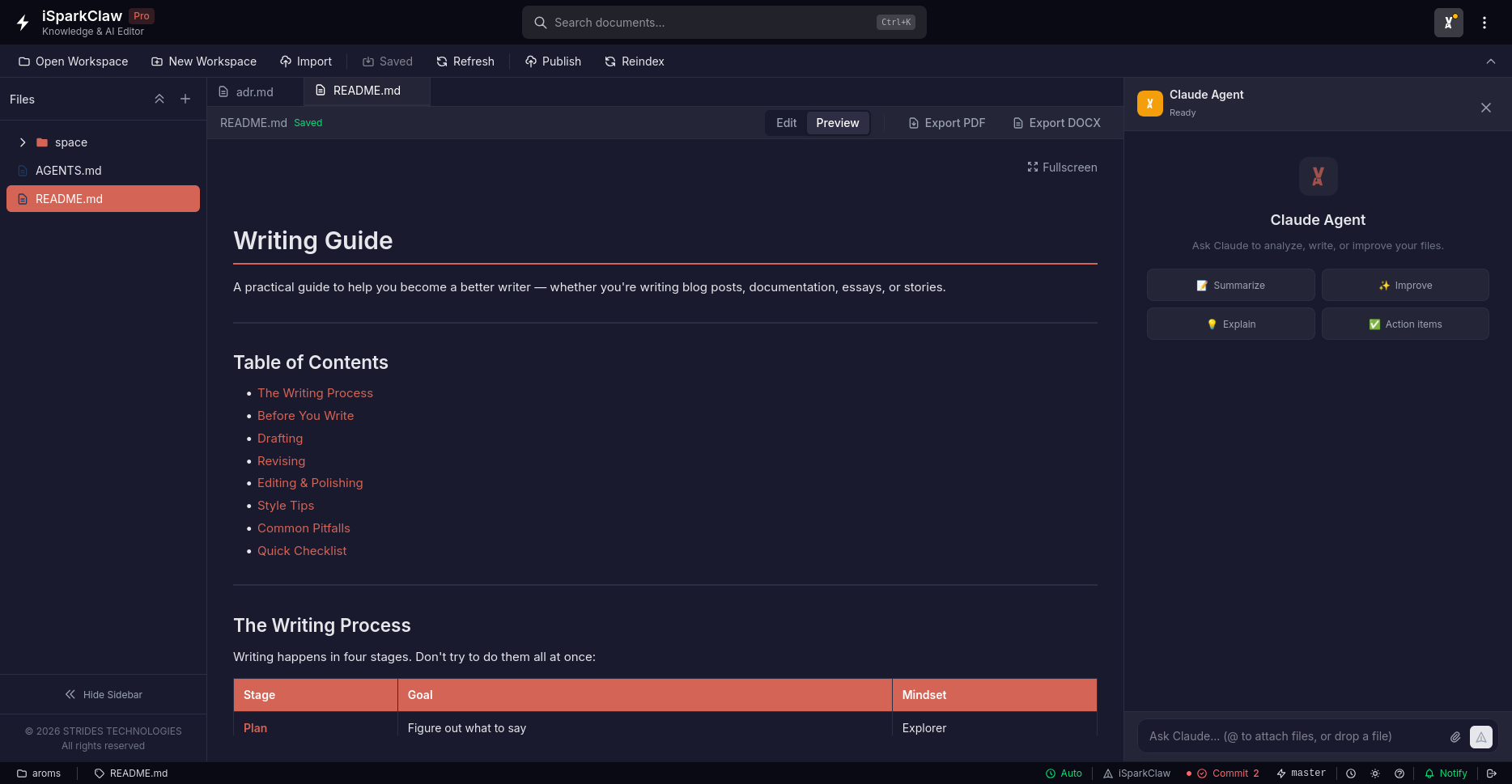
Edit and Preview Modes
Section titled “Edit and Preview Modes”For Markdown files, the editor has two modes:
- Edit — Write and format your content
- Preview — See how it will look when published
Toggle between modes using the buttons in the editor toolbar.
Markdown Toolbar
Section titled “Markdown Toolbar”When in Edit mode, formatting buttons are available:
| Button | Action |
|---|---|
| B | Make text bold |
| I | Make text italic |
| H1, H2, H3 | Add headings |
| List | Create bullet lists |
| Link | Insert links |
| Code | Add inline code |
| Code Block | Add code blocks |
Click a button to apply formatting to selected text.
Keyboard Shortcuts
Section titled “Keyboard Shortcuts”| Shortcut | Action |
|---|---|
Ctrl/Cmd + S | Save current file |
Ctrl/Cmd + B | Toggle sidebar |
Ctrl/Cmd + P | Quick Open file |
Ctrl/Cmd + K | Focus search |
Ctrl/Cmd + M | Toggle AI mode |
F1 or ? | Help dialog |
Export
Section titled “Export”From the editor toolbar:
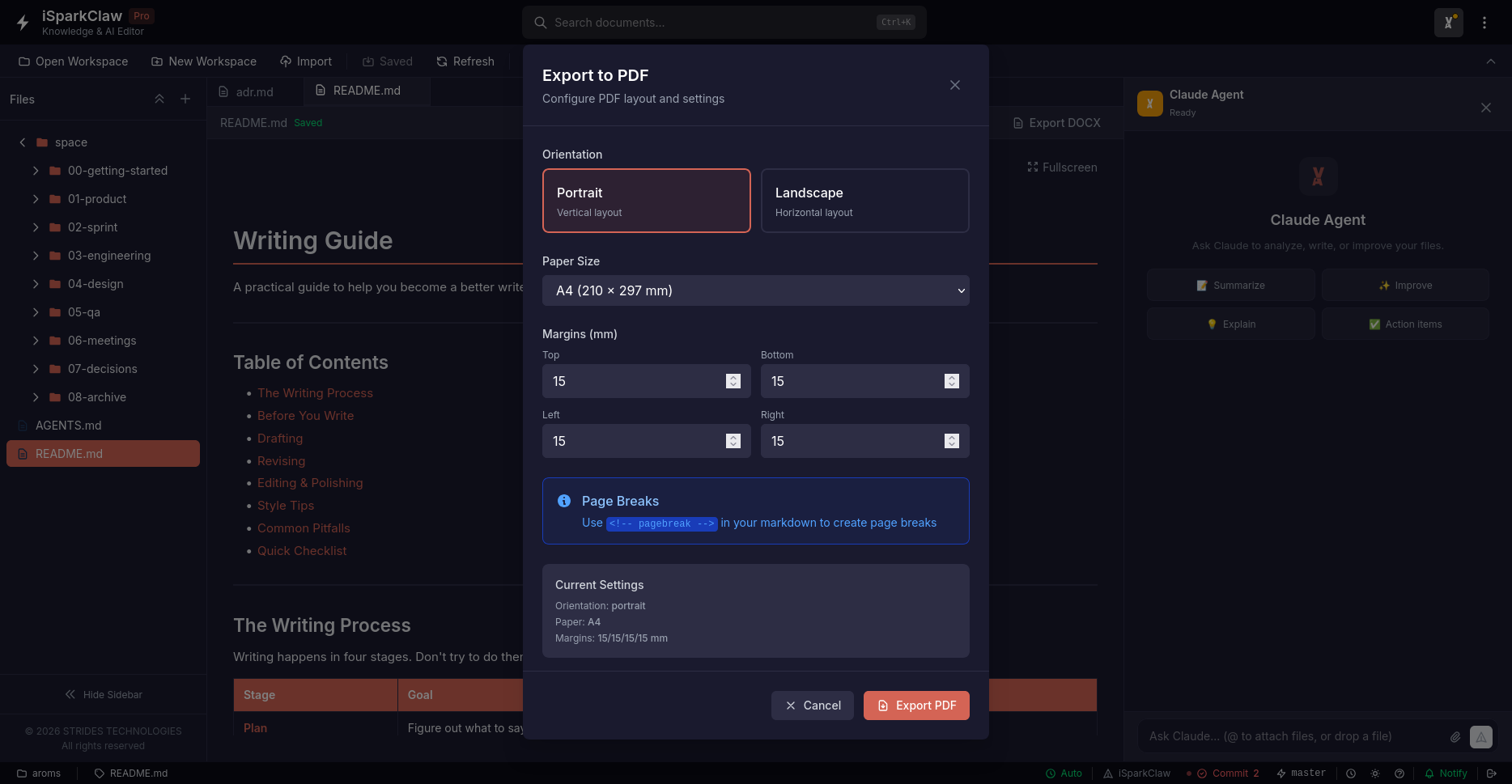
- Export PDF — Download as PDF
- Export DOCX — Download as Word document
File Management
Section titled “File Management”File Tree
Section titled “File Tree”The left sidebar shows your workspace files:
- Browse folders by clicking to expand
- Click a file to open it
- Right-click for more options
File Operations
Section titled “File Operations”Right-click any file or folder for:
| Action | Description |
|---|---|
| New File | Create a new file |
| New Folder | Create a new folder |
| Rename | Rename the file or folder |
| Delete | Remove the file or folder |
| Upload | Upload files to this folder |
Supported File Types
Section titled “Supported File Types”| Type | Extensions | How it Opens |
|---|---|---|
| Documents | .md, .txt | Opens in editor |
| Code | .json, .yaml, .py, .js, etc. | Opens in editor |
| Opens in viewer | ||
| Images | .png, .jpg, .gif, .svg | Opens in viewer |
Tab System
Section titled “Tab System”Managing Tabs
Section titled “Managing Tabs”iSparkClaw AI Editor supports multiple open files:
- Open a file — Click it in the file tree
- Switch tabs — Click the tab name
- Close a tab — Click the × button
Unsaved Changes
Section titled “Unsaved Changes”A dot next to a tab name means you have unsaved changes:
getting-started.md● ← has unsaved changesREADME.md ← savedAuto-Save
Section titled “Auto-Save”Auto-Save Mode (Default)
Section titled “Auto-Save Mode (Default)”Changes save automatically as you type.
Manual Save Mode
Section titled “Manual Save Mode”Press Ctrl/Cmd + S or click the Save button.
Image Handling
Section titled “Image Handling”Pasting Images
Section titled “Pasting Images”- Copy an image to your clipboard
- Paste (
Ctrl/Cmd + V) in the editor - The image uploads automatically
Uploading Images
Section titled “Uploading Images”Drag and Drop
- Drag images onto the File Tree
- Files upload to the images folder
Upload Button
- Right-click a folder → Upload
- Select files from your computer
Focus Mode
Section titled “Focus Mode”Focus Mode hides all distractions:
- Enter from the toolbar or command palette
- Only the editor is visible
- Hover near the top-right and click exit, or press
Esc