Search
Full-text Search, Vector semantic search, and LLM re-ranking
Section titled “Full-text Search, Vector semantic search, and LLM re-ranking”iSparkClaw AI Editor includes fast search to help you find documents across your workspace.
Using Search
Section titled “Using Search”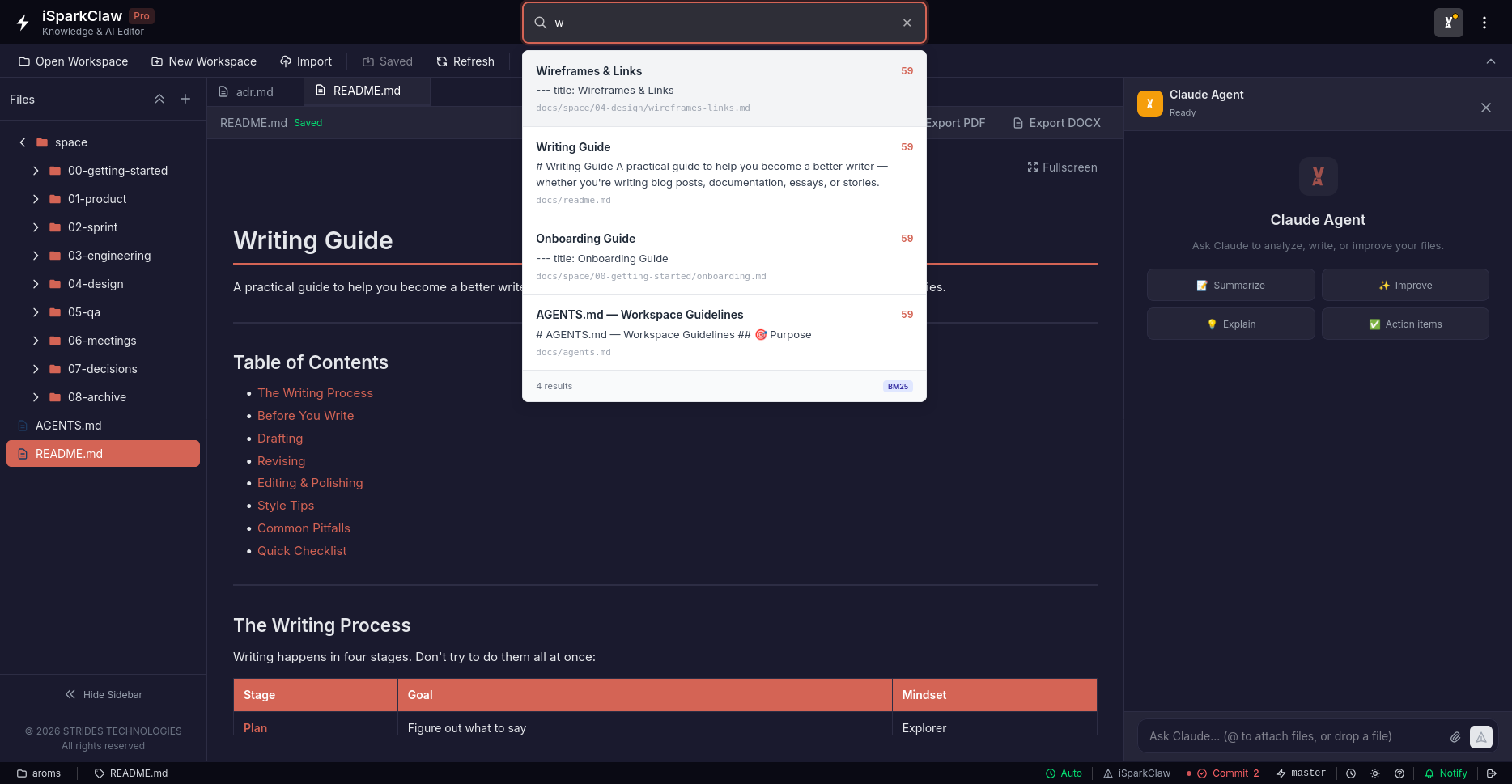
Search Bar
Section titled “Search Bar”The search bar is in the header at the top of the screen.
Keyboard Shortcut
Section titled “Keyboard Shortcut”Press Ctrl/Cmd + K to quickly focus the search bar.
Search Results
Section titled “Search Results”As you type, results appear:
Each result shows:
- File name — The document containing your search
- Preview — A snippet of matching text
- Relevance — How closely it matches your search
Opening Results
Section titled “Opening Results”Click a result or press Enter to open the file.
Navigating Results
Section titled “Navigating Results”| Key | Action |
|---|---|
↑ / ↓ | Move between results |
Enter | Open selected file |
Esc | Close search |
Reindexing
Section titled “Reindexing”If search results seem outdated, you can rebuild the index:
- Click the Reindex button in the toolbar
- Wait for the process to complete
- Search again
When to Reindex
Section titled “When to Reindex”- After importing many documents
- If recent files don’t appear in search
- Periodically for best results
AI-Powered Search Context
Section titled “AI-Powered Search Context”When you ask the AI a question, it automatically searches your documents to find relevant information. This helps the AI give you better, document-aware answers.
- Use specific keywords for better results
- Search file names as well as content
- Reindex after adding many new files
- Check the preview text to verify relevance